Keyboard Options dialog
The Keyboard Options dialog is used to map BlueZone program functions to key sequences on the keyboard and to control various keyboard related options.
From the BlueZone menu bar, click or click the Keyboard icon  on
the BlueZone toolbar. The Keyboard Options dialog opens, which contains
the Key Mappings (a
bitmap image of a keyboard), Options, and More Options tabs.
on
the BlueZone toolbar. The Keyboard Options dialog opens, which contains
the Key Mappings (a
bitmap image of a keyboard), Options, and More Options tabs.
Refer to Mapping keyboards for more information.
Key Mappings tab
- Gray keys
- Gray keys can be mapped. If you click a gray key, the Key Info/Mappings
window opens and lists all of the key mappings for each function group.
It also lists any combination key mappings that this key is used in.
The following figure shows the associated mappings with the V key. The Ctrl key is mapped to the Edit::PasteMenu Hotkeys. All of the other available mappings are unmapped.
Figure 1. IBM iSeries key mappings information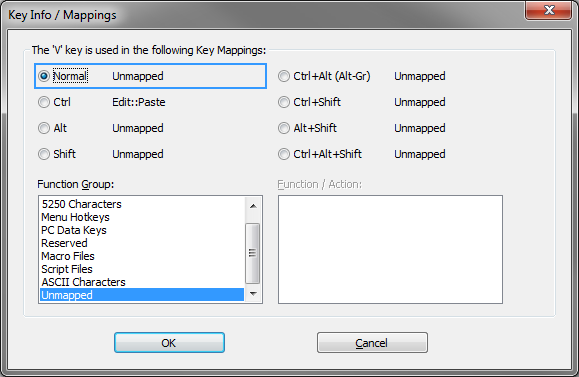
- Red keys
- Red keys cannot be used to map 5250 Functions.
- Yellow keys
- Yellow keys are caution keys. Care should be taken when using the yellow keys to map 5250 Functions. The caution keys include the Alt keys and the Esc key. Windows uses the Alt keys with menu accelerators and the Esc key is the default BlueZone Full Screen Hotkey key.
- Options
- Keyboard Type: A drop-down menu that contains
a list of keyboard options for BlueZone. Select the type of keyboard
required for your display:
- Default
- Unicomp 0852-M 122 Key
- KeyTronic KB3270/Plus
Dutch
French
German
Japanese
United States
United States-International
Note: If you select either the Unicomp 0852-M 122 Key or the KeyTronic KB3270/Plus keyboard, a 122 Keys button displays in the upper right hand corner of the dialog. Click this button to display a floating keyboard bitmap of the extended keys. - Functions Group: A list box that contains
a list of a the BlueZone Function Groups that can be mapped.
- 5250 Functions: Lists the 5250 functions and what keys they are currently mapped to.
- 5250 Characters: Lists special 5250 characters and what keys they are currently mapped to.
- Menu Hotkeys: Lists the BlueZone menu items available for key mapping.
- PC Data Keys: Lists the PC Keyboard Keys available for key mapping.
- Reserved: Not used at this time.
- APL Characters: Lists APL graphics characters and what they are currently mapped to.
- Macros Files: Lists the macro files available
for key mapping. BlueZone macro files are created by selecting from
the BlueZone menu bar. Note: When Macro Files is selected, only macro files from the BlueZone program directory will be listed for selection.
- Script Files: Lists the script files available
for key mapping. BlueZone script files are created by selecting from
the BlueZone menu bar. Note: When Script Files is selected, only script files from the BlueZone program directory will be listed for selection.
- Functions: Lists the functions available
for key mapping. The functions displayed are dependent on which function
is selected in the Functions Group list box above.
For example, if 5250 Functions is selected the Functions Group List Box, then only 5250 Functions will be displayed in the Functions window along with their respective Key Mappings in the Key Mappings window.
- Key Mappings: Lists the key mapping or mappings if any, that will execute the highlighted function in the Functions list box.
- Keyboard Type: A drop-down menu that contains
a list of keyboard options for BlueZone. Select the type of keyboard
required for your display:
- Key Mappings Buttons
- Print: Allows you to print out the mappings for whatever is displayed in the Functions Group list box. For example, if you want a printout of all the 5250 keyboard functions and what keys they are currently mapped to, make sure that 5250 Functions is in the Functions Group list box and click Print.
- New: Adds a new key mapping entry to the
Key Mappings list box. Note: Functions can be mapped to more than one key.
- Edit: Edits the highlighted key mapping entry.
- Delete: Removes the highlighted key mapping entry from the Key Mappings list box.
- OK: Accepts the key mapping and assigns it to the 3270 Function.
- Cancel: Cancels the key mapping.
Options tab
- Options
- Operate 5250 Function Backspace as a Destructive Backspace: If enabled, the 5250 Function Backspace deletes the character underneath the cursor after the cursor has been moved.
- Auto-Reset when keyboard is locked (an audible sound
will be heard): If enabled, the 5250 Function Reset is
automatically executed if the keyboard state becomes locked with an
“X Error” condition.
- Auto Tab After Reset: If enabled, an Auto-Tab is issued immediately after the keyboard is unlocked by the Auto-Reset feature above. The purpose of this feature is to automatically bring the cursor to the closest field of entry.
- Immediate Auto-Reset: If enabled, the Auto-Rest is issued immediately.
- Auto-Rest when Next Key is Pressed: If enabled, the Auto-Rest is issued only after a key is pressed.
- Operate 5250 Function Rapid Left/Right as Word Rapid Left/Right: If enabled, the 5250 Functions Rapid Left and Rapid Right operate as Word Left and Word Right.
More Options tab
- Options
- 5250 Function End - Move Cursor to End of Text on Line: If enabled, the 5250 function "End" moves the cursor to the end of any text on that Line.
- 5250 Function End - Move Cursor to End of Text in Field / End of Field: If enabled, the 5250 function "End" moves the cursor to the end of any Text in the Field or to the end of the Field.
- Hard-Map Print Screen Key to Menu Hotkey File→ Print
Screen: If enabled, the 5250 Function print executes when
pressing the Print Screen key on the keyboard.Note: The Print Screen key is a system key and also causes Windows to copy the contents of the desktop to the clipboard.
- Auto-Repeat Mode for Ctrl, Alt and Shift Keys: If enabled, Control, Alt and Shift keys operate in Auto-Repeat Mode.
- Auto-Repeat Mode for Enter Keys: If enabled, the Enter Keys operate continuously while pressed.
- Auto-Repeat Mode for Function Keys: If enabled, the Function Keys operate continuously while pressed.
- Convert Input to Uppercase: If enabled, BlueZone forces the entry of all characters to be uppercase regardless of the state of the Caps Lock key.