Assigning sessions to groups and users
After you have created your sessions, pools, groups and users, you can assign sessions to groups and users either from the
Group Properties dialog, the User Properties dialog, or you can start from the sessions.
Follow the steps below to assign a single session or a pool to a user or a group.
| 1. | Click on the Sessions node in the cluster tree to expand it and then click the Single sessions or Pools node. |
| 2. | In the right panel, right-click on the session you want to assign and select Assign to group. The following dialog box opens:
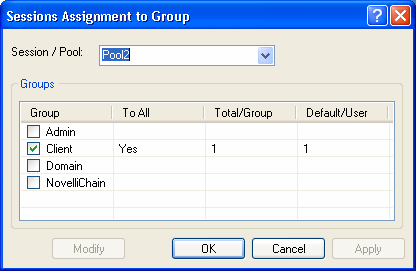 |
| 3. | In the Session / Pool drop-down menu, select the session or pool you want to assign to the group. |
| 4. | In the Groups section, check the group(s) you want to assign to the session or pool. The window below appears. If this is a new session or pool, all check boxes are unchecked.
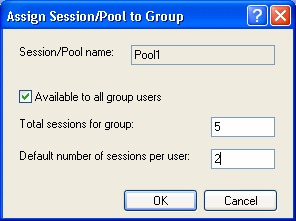 |
| 5. | Check the Available to all group users check box if you want the pool or session to be available to all the users in the group to use. If you clear this check box, the pool is assigned to the group but users cannot use it until it is assigned to them separately
in user level. Use this option if you want to give a small number of users in a large group access to a certain session while
you do not want the other group users to have access to it.
|
| 6. | In the Total sessions for group field, type the maximum number of sessions from the selected pool that are made available to all the users of this group.
For example, if the original pool has a size of 50 sessions, you can provide only 20 to this group. The users of this group
will not be able to connect more than this number of sessions from this pool at the same time. This field has to be smaller
than the pool size.
|
| 7. | In the Default number of sessions per user field, type the number of sessions from the pool that every user has access to. This field must be smaller than the Total sessions for group field. For example, if you enter 3 in this field, then every user in the group will, by default, have access to 3 concurrent display
sessions from this pool. Note that this value can be overridden on the user level to provide certain users with more or less
sessions than other group members. If you have such a case where group members will have different requirements from the same
pool, enter in this field the value that will be used by most members and then modify the small number of users that need
a different number of sessions.
|
Note
You have to be careful when assigning one pool to different groups in order not to overuse the pool. For example, if you have
a pool of 50 sessions and assign it to 3 groups with a Total sessions for group set to 20, the user who tries to connect session
number 51 will not have access. The server will validate the limits on the user level (Default number of sessions per user),
on the group level (Total sessions for group), on the pool size level and then on the license limit. If any of these limits
is exceeded, the session will not be granted.