Registering BlueZone
If you have purchased a BlueZone single user license, you received a BlueZone Installation Key. Single user license holders
must run the Seagull Registration Wizard to complete the installation process.
After installing BlueZone, the first time you start a BlueZone session, you receive the following message:
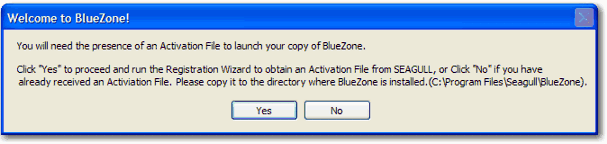
| 1. | Click Yes to launch the Seagull Registration Wizard. The Registration Information screen appears.
|
| 2. | Fill in all the fields on this form including your BlueZone Installation Key. All fields are required. |
| 3. | Once all the fields are properly filled in, click Next. The Activation Request Submit screen appears.
|
| 4. | Select the Via Web (requires direct Internet connection) radio button and click Next. A screen appears that shows the progress of the registration request.
|
| 5. | When the registration process is complete, click Next. A screen appears that shows the path where your Software Activation File (seagull.saf or bzallwin.saf) is stored. This file is unique to each machine and does not work if copied to another machine.
|
| 6. | Click Finish. |
Note
If you have purchased multiple BlueZone Desktop licenses, install the software and run the Seagull Registration Wizard on
each machine using the same installation key. The Seagull Registration Wizard keeps track of the number of installations
and does not allow any more than the number of licenses purchased. The Software Activation File that is generated is unique
to each machine and does not work if copied to another machine.