 NOTE
Your PasswordVault
credentials do not have to match your Windows credentials.
NOTE
Your PasswordVault
credentials do not have to match your Windows credentials.How To Guide
When Windows Based Security is enabled, you will no longer be prompted to log into PasswordVault. Instead, PasswordVault detects your Windows credentials and automatically logs you into PasswordVault each time you start your machine, or log onto Windows,
PasswordVault compares your Windows logon credentials with the values stored in PasswordVault. If they match, PasswordVault automatically logs you into the application and opens the PasswordVault. If your machine id used by multiple users, the Windows Based Security feature will detect each user's credentials and automatically log them into the correct PasswordVault.
NOTE
Your PasswordVault
credentials do not have to match your Windows credentials.
After you install and configure PasswordVault, you can enable Windows Based Security.
Procedure
Right click the BlueZone.PasswordVault icon located in the Windows System Tray and choose Settings... from the pop-up window.
The main BlueZone.PasswordVault desktop application will launch defaulting to the Accounts screen.
Click the Options button. The Options screen will be displayed.
Locate the PasswordVault Security section near the bottom of the page.
Click the Use Windows Based Security radio button. A password dialog box will be displayed as shown here:
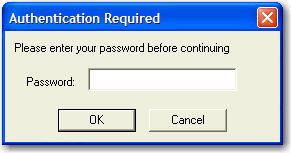
Enter your PasswordVault password and click the OK button.
Click the red X to close the PasswordVault desktop application.
Windows Based Security is now configured.